CEL Expression Editor
AutoTalk uses CEL (Common Expression Language) expressions in AI agents and workflows to make behaviour dynamic — personalising system messages with contact names, conditionally running steps, and computing values at runtime.
This page explains how to write and test CEL expressions using the built-in editor.
Where expressions appear
CEL expressions appear wherever you see the CEL badge in the configuration UI:
- Agent → Messages tab — system message content (e.g. inject the contact's name into a prompt)
- Agent → Actions tab — the Condition field on each pre-action or post-action step
- Workflow → Steps — step conditions and output mappings
The expression editor
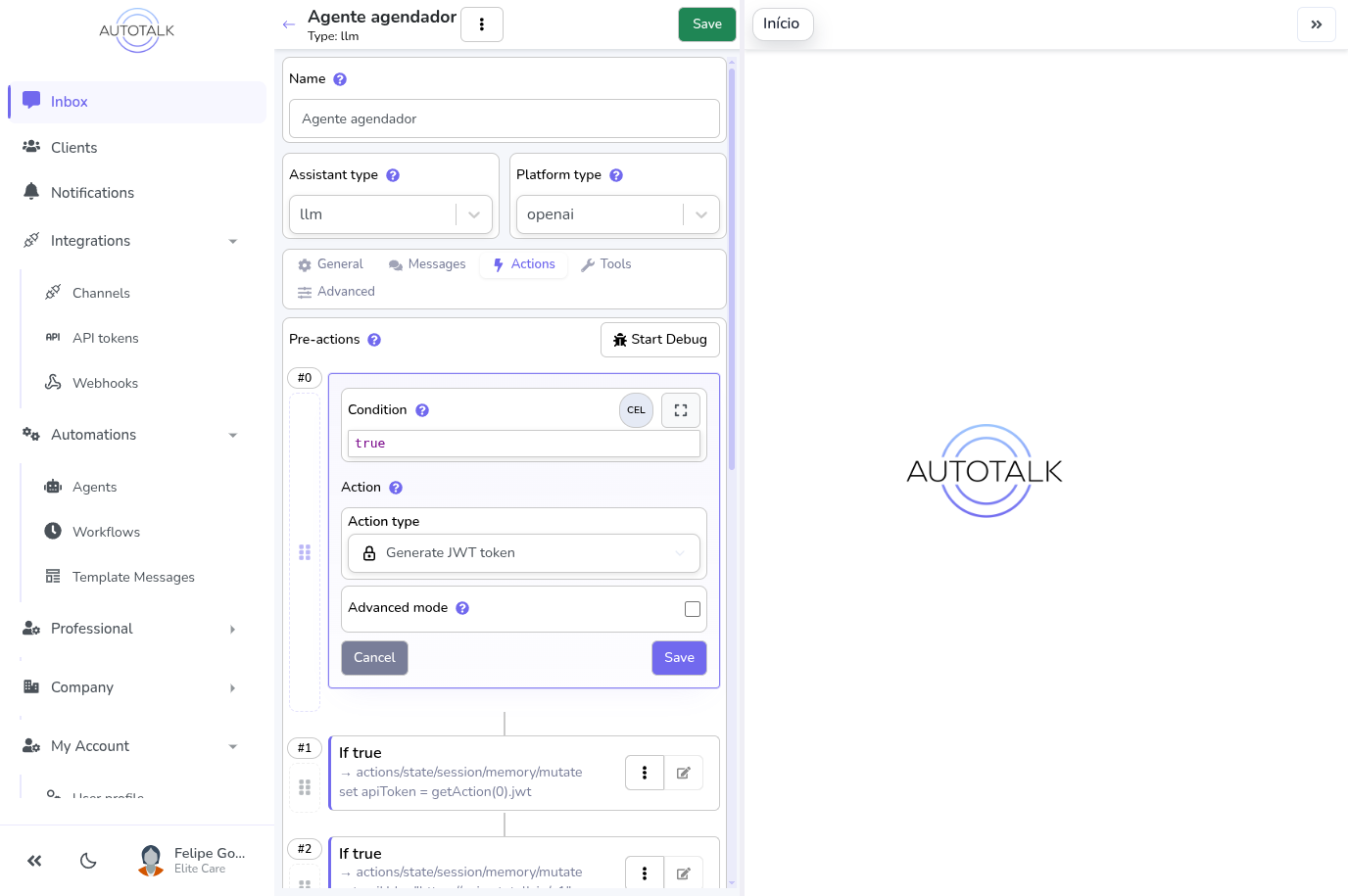
When you open an action step for editing, the Condition field shows the compact expression editor. It has:
- Syntax highlighting — keywords, strings, and operators are colour-coded
- Real-time validation — a red error badge appears with the exact error message when the expression is invalid (the green Valid badge lives in the expanded workbench, not the compact field)
- Format button — auto-formats the expression (keyboard shortcut:
Ctrl+Shift+F) - Expand button — opens the full workbench (see below)
Simple CEL vs raw CEL
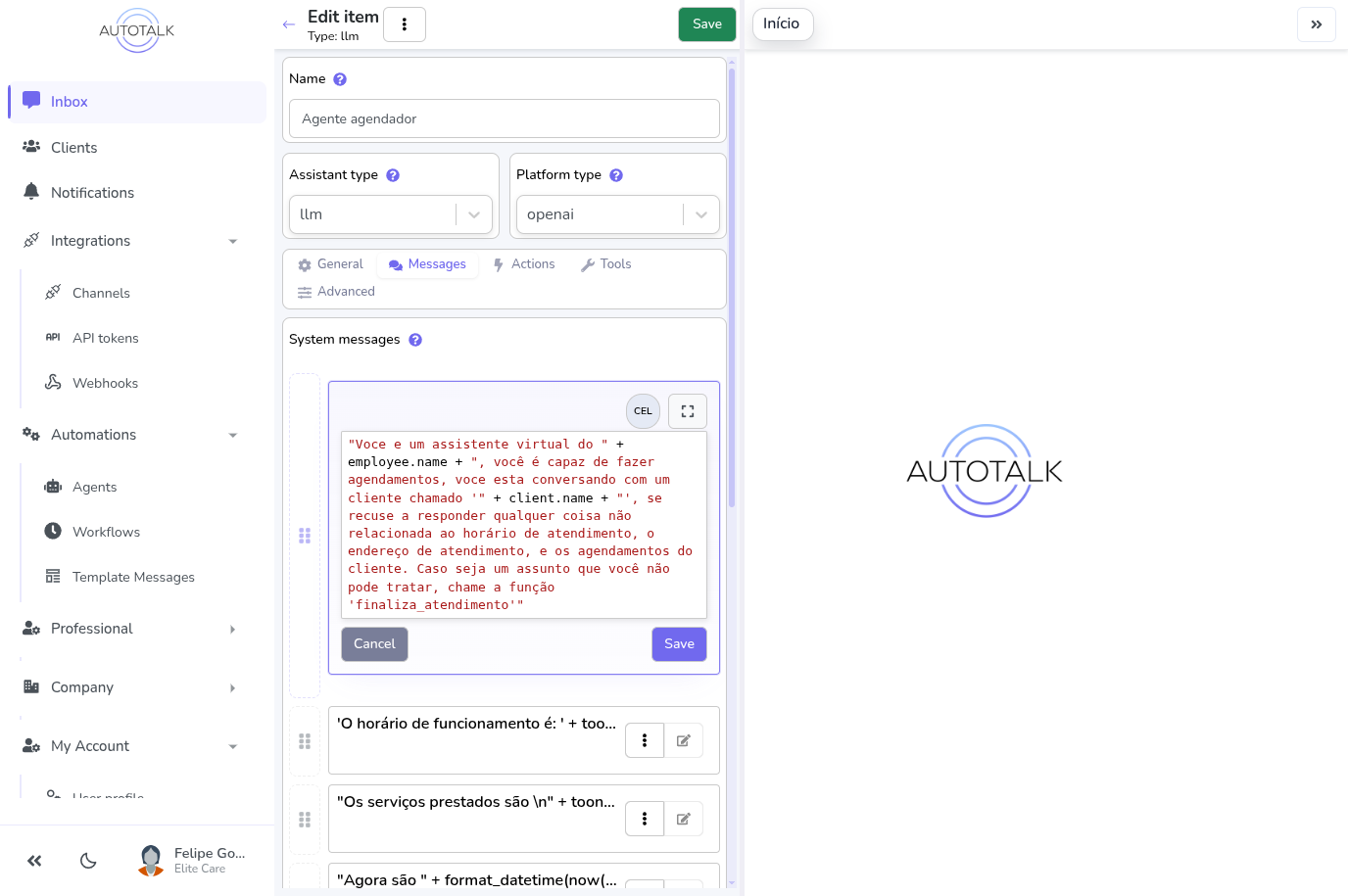
System message fields (and other text fields) offer two authoring modes, toggled by the CEL button in the field header:
| Mode | Example | When to use |
|---|---|---|
| Simple CEL (SCEL) | Hello {{contact.name}}! | Simpler syntax for text with variable substitutions |
| Raw CEL | "Hello " + contact.name + "!" | Full CEL syntax when you need logic, conditionals, or function calls |
Both modes produce the same result. The {{variable}} syntax is automatically converted to raw CEL when you save.
Advanced field options
Expand the Advanced drawer under any expression field to configure:
| Option | What it does |
|---|---|
| On failure | What happens if the expression throws an error at runtime: throw the error (throw, the default), return null, fall back to a string, or keep the original expression |
| Result type | Expected output type (any — the default — string, number, boolean, date, array, or object) |
| Fallback value | A literal string used as the result when On failure is set to Fallback to string |
The full workbench
Click Expand on any expression editor to open the full workbench in a dedicated view. Its toolbar has Explorer and Test toggle buttons that open a floating panel over the editor.
Explorer
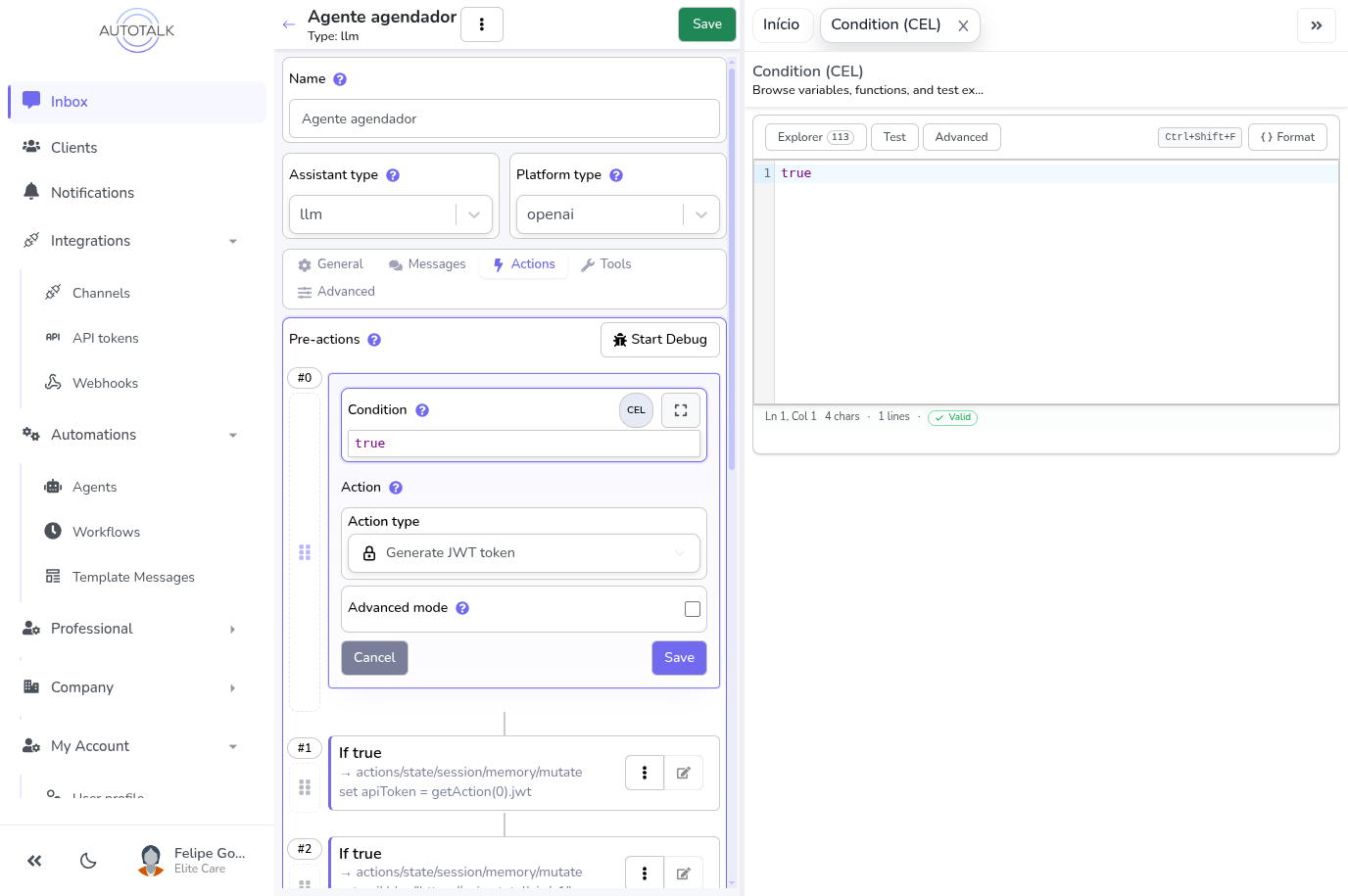
The Explorer panel shows everything available in the current context:
- Variables tree — all variables you can reference in this expression, expandable to see nested fields. Click any variable or field to insert it at the cursor.
- Functions list — all built-in functions with their signature and description. Click to insert.
- Search box — filters both variables and functions as you type.
The variables shown depend on where the expression lives:
| Location | Available variables |
|---|---|
| Agent pre-actions / post-actions | contact, contactMessage, conversation, company, step(0), step(1), … |
| Agent system messages | company, contact, contactMessage, conversation, and any tool results under context.tools.* |
| Workflow steps | _workflow, occurrenceDate, trigger inputs, step(0), … |
Note: the contact is exposed as the
contactvariable — writecontact.namein expressions. (Older builds labeled itclientin the Explorer tree; the runtime key has always beencontact.)
Test
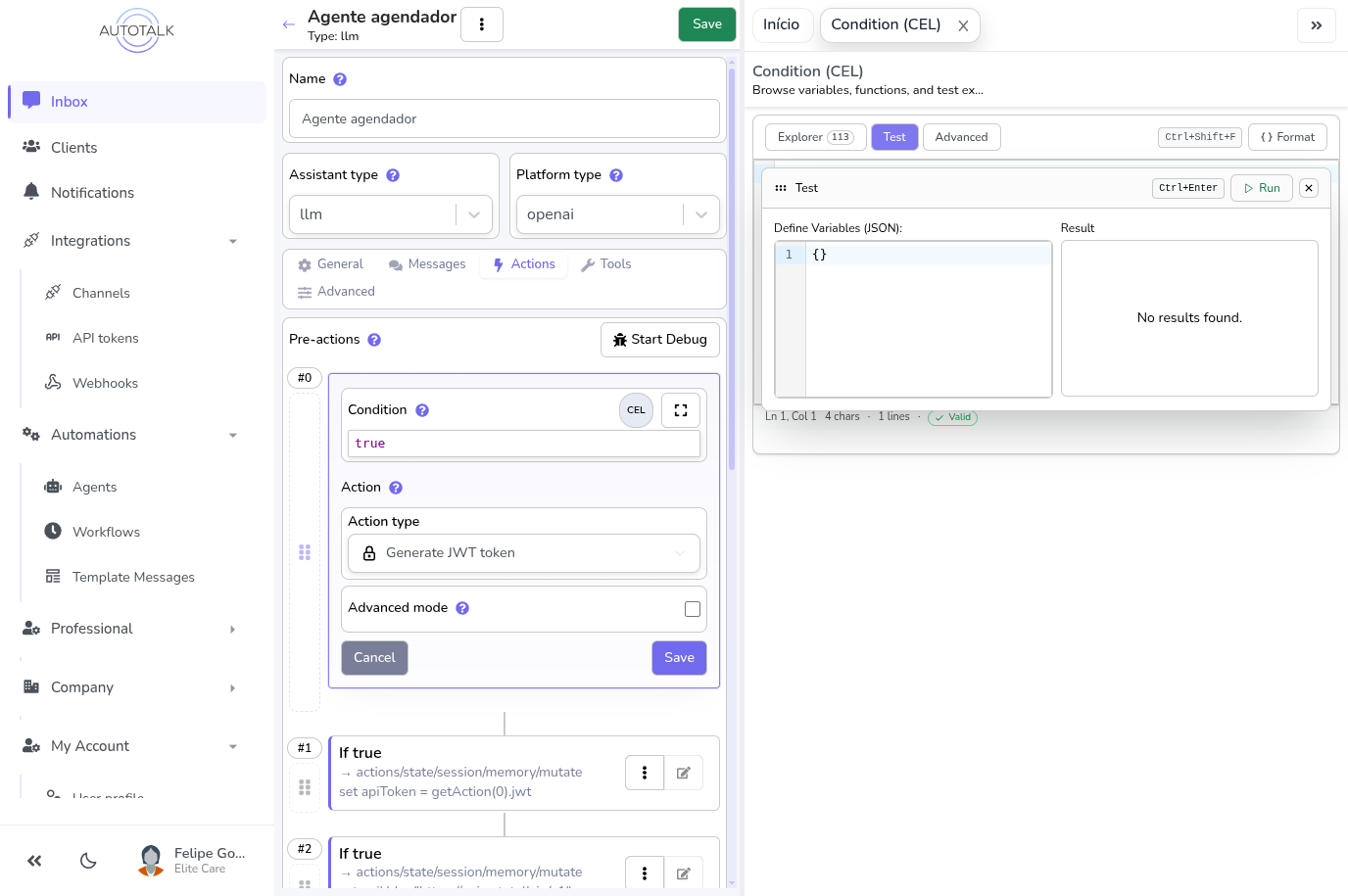
The Test panel lets you evaluate the expression against custom variable values without touching a live conversation:
- Edit the JSON on the left to define test values for variables (e.g. set
contact.nameto"Alice") - Click Run (or press
Ctrl+Enter) - The result appears on the right — either the computed value or a formatted error message
Variables reference
For a complete list of all available functions, see the CEL Functions Reference.
These variables are available inside agent expressions:
| Variable | Description |
|---|---|
contact | The contact who sent the message — contact.name, contact.contactIdentification, contact.tags, contact.customAttributes, etc. |
contactMessage | The incoming message — contactMessage.body.text, contactMessage.type, etc. |
conversation | The conversation session — conversation.contactId, conversation.lastMessageAt, conversation.isGroup, etc. |
company | Your company profile — company.companyName, company.options, etc. |
step(N) | Output of a previous step at index N — e.g. step(0).jwt, step(2).data[0], or get(step(1), 'executionContext.status') |
There is no top-level
employeevariable in agent contexts. Fetch employee/professional data via a data step and read it fromstep(N).data[0].
Common step outcome checks
Use the step helper functions for concise step status checks:
step_ok(0)                                          // true if step 0 completed successfully
step_data(0, "title")                               // get step 0's data.title
step_data(1, "choices.0.message.content", "")        // LLM response with fallback
step_error(2)                                        // {code, user_message, retryable} or null
step_data's path is relative to the step's data, so step_data(0, "title")
is get(step(0), "data.title") — never write step_data(0, "data.title"). Many
actions publish at the step root instead and have no data at all — including
actions/ai/llm/chat/generate, actions/data/company/resource/count and every
actions/media/storage/* — so read those with get(step(N), "field"). A path
that does not exist returns the default silently while step_ok(N) stays true,
so check the action's declared outputs first — the full list is in
Actions that publish at the step root.
Execute code is a third case: it publishes a top-level result, so
step_data(N, "count") reads step(N).result.count, while the root siblings
files, logs and executionTimeMs are only reachable with
get(step(N), "files").
Or use step(N).executionContext directly for lower-level checks:
get(step(0), 'executionContext.status') == 'completed'
get(step(1), 'executionContext.safeError.code') == 'unsupported_media_format'
get(step(2), 'executionContext.safeResult.reason') == 'condition_false'
safeError is intended for safe debugging and branching. It does not expose raw stack traces, secrets, or provider payloads.
See the CEL Functions Reference for the complete function list.
Debugging expression errors
When a CEL expression fails during a live conversation, an error bubble appears in the chat — visible only to your team, not to the contact.
Reading the error bubble
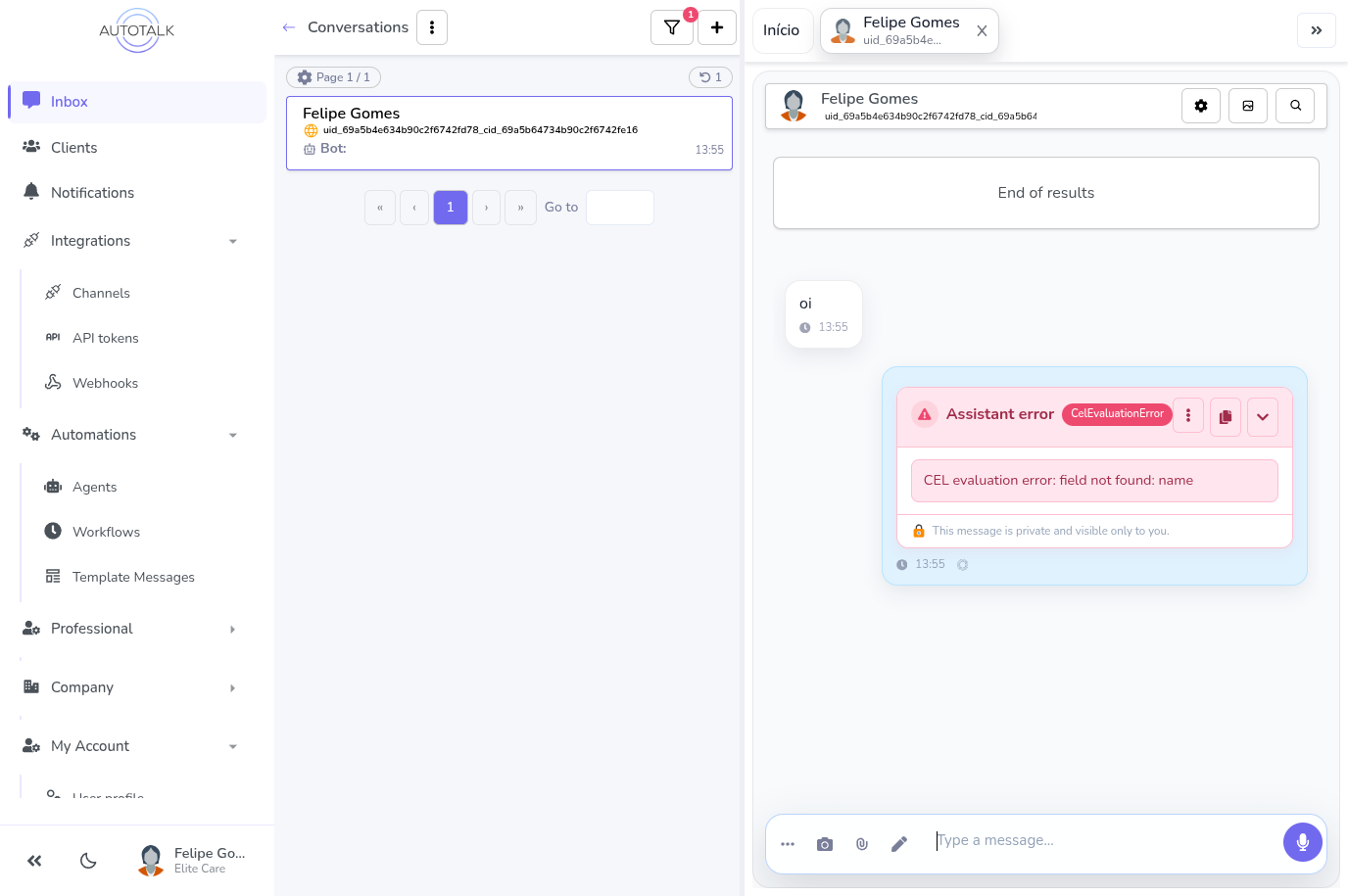
The collapsed bubble shows the error type and a one-line message. Click ▼ Expand to see the full detail panel.
Expanded view
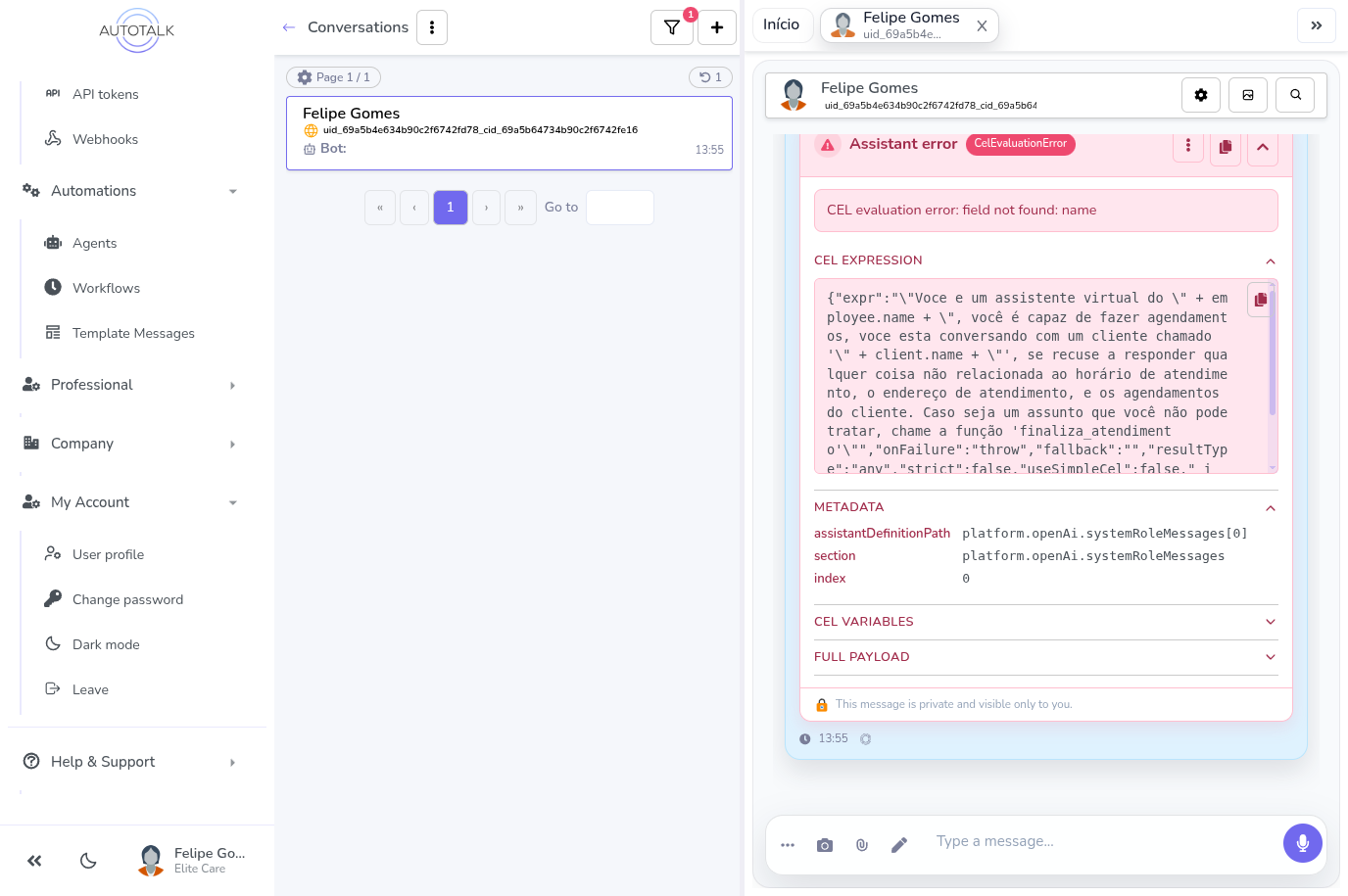
The expanded panel has four sections:
| Section | Content |
|---|---|
| CEL Expression | The exact expression that failed — copy it to paste into the workbench for testing |
| Metadata | Where the error happened: which section of the agent config, which message or action index |
| CEL Variables | (Debug log level only) The full list of variables and their values at the moment of the error |
| Full Payload | The raw error data as JSON |
CEL Variables section
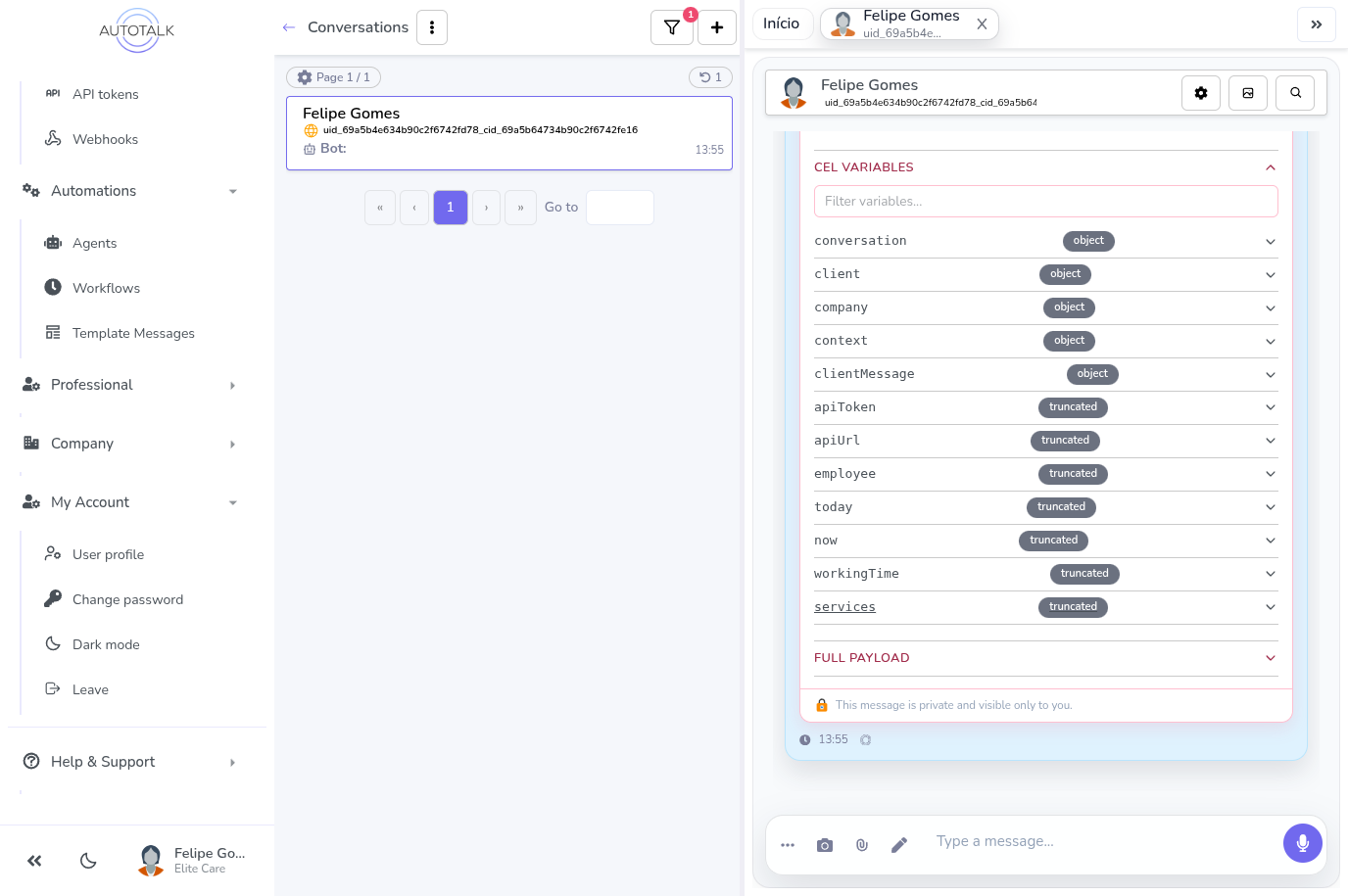
The CEL Variables section is the most useful for diagnosing problems:
- Use the filter box to search for the variable your expression references
- Expand any variable to inspect its actual value and structure
- Variables labelled truncated are large objects that were abbreviated
Note: CEL Variables only appears when the agent's Log level is set to Debug. Go to the agent's Options tab to raise the log level, then lower it again after you've fixed the issue.
Step-by-step debugging
- Expand the error bubble with ▼.
- In CEL Expression, copy the failing expression.
- In Metadata, note the
sectionandindexto find the right field in the agent editor. - In CEL Variables (requires Debug log level), search for the variable the expression uses and check its actual value.
- Open the agent editor, go to the relevant tab, and click Expand on the problematic field.
- Paste the expression into the Test tab, enter realistic variable values, and run it to reproduce the error.
- Fix the expression and save. The error bubble will stop appearing once the expression succeeds.