Libraries
Libraries let your company write a piece of logic once and reuse it everywhere: in workflows, code steps, agents and forms. Each library is published as numbered versions that never change, and every place that uses a library picks one exact version. Editing or publishing a library never changes something that already uses it; moving to a newer version is always a deliberate step.
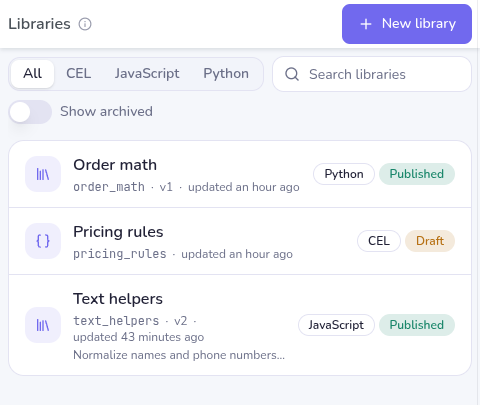
All your company's libraries in one list, with their latest version and state.
Choosing CEL, JavaScript or Python
| CEL | JavaScript | Python | |
|---|---|---|---|
| What you write | Typed functions with a CEL expression body | A JavaScript module with named exports | A Python module |
| Where you use it | Any CEL expression: conditions, templates, forms, agent tools | Execute Code steps in JavaScript | Execute Code steps in Python |
| Runs in | The CEL evaluator, no I/O | A V8 isolate; fast start, up to 30 s per run | A container with data packages; up to 120 s per run |
| Good for | Small rules and formatting you need inside expressions | General code, data shaping, HTTP calls | Spreadsheets, PDFs, images and other data work |
CEL libraries have their own editor: see CEL libraries. The rest of this page covers JavaScript and Python libraries.
Find and create a library
Open Automations → Libraries. The list shows every library with its module name, latest version, last update and state: Published, Draft, Unpublished changes or Archived. Filter by language, search by name, and turn on Show archived to include archived libraries.
To create one, choose New library and pick CEL, JavaScript or Python. For JavaScript and Python:
- Language is fixed once the library is created.
- Name is what people see in the app.
- Module name is how code refers to the library, for example
text_helpers. It is filled in from the name as you type, and you can change it before creating the library. It uses lowercase letters, digits and underscores, starts with a letter, and has at most 48 characters; language keywords and runtime names are reserved. It can't be changed later, and an archived library keeps its name. - Description is optional.
The preview under the module name shows how a code step will call the library.
The editor
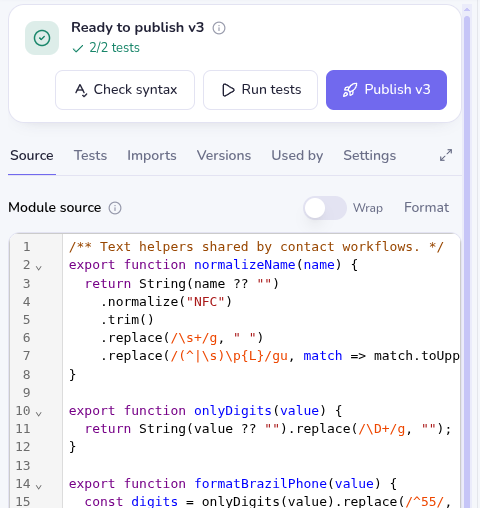
A code library opens with a status line at the top. It says where the library stands, such as "No tests yet", "1 test fails" or "Ready to publish v2", and holds three actions:
- Check syntax checks the source and its imports without running it.
- Run tests runs the library's tests.
- Publish vN creates the next version. It names the version it will create, and when it is unavailable, hovering it says why.
Saving the library never runs code. Check syntax and Run tests use the code sandbox and count toward compute usage.
The editor has six tabs:
| Tab | What it's for |
|---|---|
| Source | The module source. Problems found by Check syntax are underlined on their line. Wrap wraps long lines; Wide view gives the editor the whole page. |
| Tests | Named tests, each with its own JSON Input, and the result of the last run. |
| Imports | Other libraries this module uses, each pinned to an exact version. |
| Versions | Every published version, with its date, test result and changed exports. Compare a version with the previous one or export its source. |
| Used by | Workflows and other libraries that use this library, grouped by version, with how many versions behind each one is. |
| Settings | Name, description, download the draft, and archive the library. |
Writing JavaScript libraries
A JavaScript library is an ES module. Export what other code should use:
/** Trims a name and collapses repeated spaces. */
export function normalizeName(name) {
  return String(name ?? "").trim().replace(/\s+/g, " ");
}

export const DEFAULT_COUNTRY = "BR";
- Functions, classes and constants can be exported. Exported
asyncfunctions work, and a code step canawaitthem. - To use another library, add it under Imports, then import it:
import * as text_helpers from "autotalk_libraries/text_helpers";orimport {normalizeName} from "autotalk_libraries/text_helpers";. - Module-level
awaitand dynamicimport()are not supported. - A library has the same sandbox APIs as a code step, including
fetch, and each run gets fresh module instances. - A
/** ... */comment right above an export becomes the description shown in the code step and in autocomplete.
Writing Python libraries
A Python library is a module:
from decimal import Decimal, ROUND_HALF_UP

TAX_RATE = Decimal("0.18")

def money(value):
    """Rounds a value to cents."""
    return Decimal(str(value)).quantize(Decimal("0.01"), rounding=ROUND_HALF_UP)
- The library's exports are its top-level functions, classes and assignments. Names that start with
_and names the module only imports are left out, soDecimalabove is not an export. To choose the exports yourself, define__all__. - To use another library, add it under Imports, then
from autotalk_libraries import text_helpers. - For HTTP, import
fetchfrom the runtime:from autotalk_runtime import fetch, FetchError. The standard library and the Python runner's bundled packages are available. - Pass caller data to your functions as arguments; a library can't read the step's input directly.
- A function's docstring becomes the description shown in the code step and in autocomplete.
Tests
A test is a short script that calls the library and fails when something is wrong: it throws an error in JavaScript, or fails an assert in Python. Each test can have a JSON Input, available as input in JavaScript and INPUT in Python.
if (autotalk_libraries.text_helpers.normalizeName(input.name) !== "Ada Lovelace") { // input: {"name": "  Ada   Lovelace "}
  throw new Error("Unexpected name");
}
from autotalk_libraries import order_math

assert str(order_math.money(INPUT["value"])) == "10.50"  # INPUT: {"value": 10.499}
Add test starts a test that calls your first exported function with its parameters taken from the input. After a run, each test shows Passed with its duration, or Failed with the line that failed and its logs. Editing a test after a run marks its result as out of date.
Tests run in the normal sandbox, one after another, in fresh sandboxes. They can reach the network and write files, and each run counts toward compute usage. Up to 20 tests run per library, within 120 seconds in total.
Publishing and versions
Save the library, then choose Publish vN. The confirmation shows what the new version changes since the last one: exports added and removed, how many lines changed (with the full difference one click away), how many tests will run, and who uses the current version. Publishing checks the saved source and runs all tests again; a failing test stops the publication. A library with no tests can be published, and its version is marked untested.
Versions are numbered v1, v2, v3 in publishing order and never change. Publishing a new version does not move anything to it: everything that uses the library keeps its version until someone updates it.
Using a library in a code step
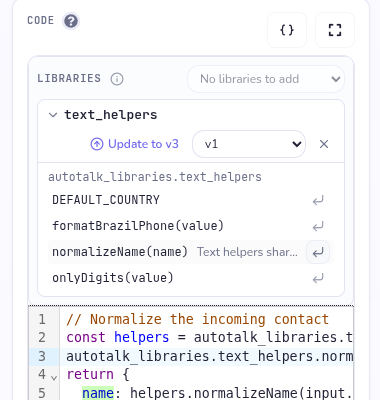
In an Execute Code step, the Libraries box above the code lists the libraries the step uses:
- Add a library pins a published library of the same language at its latest version.
- The version select shows each version, with (latest) next to the newest. When a newer version exists, Update to vN opens a review of the exports and source that change before you apply it.
- Open a library's row to see its exports with their parameters and description. The insert button next to each one adds a call at the cursor, on its own line, with the first parameter selected. In Python it also adds the import at the top if it is missing.
Call the library from the step:
return autotalk_libraries.text_helpers.normalizeName(input.name);
import json
from autotalk_libraries import order_math

result = order_math.money(INPUT["value"])
with open("/work/out/output.json", "w") as output:
    json.dump(str(result), output)
- A JavaScript step can reach only the libraries pinned on that step; a library's own imports are not exposed to the step.
- A Python step returns its result by writing
/work/out/output.json. - Changing the step's Language removes its pinned libraries. The confirmation lists them, and the code stays as written, so update it for the new language.
Used by and archiving
Used by shows every workflow and library that pins this library, grouped by version, so you can see who is still on an older version before you change anything.
Archiving a library (Settings → Archive library) stops new versions and new pins. Everything that already pins it keeps working. Archiving can't be undone: the draft can no longer be edited, the module name stays taken, and published versions are kept. Don't put secrets in library source.
Limits
| Limit | Value |
|---|---|
| Direct imports per step or library | 24 |
| Libraries in one dependency graph | 32 |
| Import depth | 16 |
| Source per module or test | 64 KiB |
| Whole draft (source and tests) | 512 KiB |
| Code bundle for one run | 2 MiB (separate from input-file limits) |
| Tests per library | 20 |
| Test run time, in total | 120 seconds |
Permissions and API scopes
- Anyone who can read a library can pin it and use it.
- Creating, editing, checking, testing, publishing and archiving a library are limited to the company owner. Other members see libraries read-only.
- With an API key, creating and editing libraries, checking, testing, publishing and archiving need
automation:admin. Reading libraries and their versions needsdata:read.
MCP and API
An MCP client can do everything the editor does:
get_code_library_referencelists the published libraries you can read, or describes exact versions: exports with their parameters and description, how to call them, and whether a newer version exists. It needsdata:read.- Create and edit libraries with
create_documentandupdate_documentoncode_libraries. Send thedraftRevisionyou read with the library, so you never overwrite someone else's edit. - Use
execute_functionforvalidateDraft,testDraftandpublish(withexpectedDraftRevision), and forlistReleases,getRelease,listDependentsandarchive. - Pin exact versions as
codeLibraries: [{libraryId, releaseId}]on a code step, or on therun_codetool for a one-off run.
The libraries guide in the MCP server (get_guide) explains when an assistant should reuse or create a library.
Common errors
| Code | What it means |
|---|---|
code_library_draft_conflict | The library changed since you opened it. Reload and try again. |
code_library_owner_required | Only the company owner can check, test, publish or archive. |
code_library_archived | The library is archived, so it can't be edited, published or newly pinned. |
code_library_invalid_slug | The module name breaks the naming rules or is reserved. |
code_library_language_mismatch | A pinned library's language differs from the step or library that uses it. |
code_library_dependency_cycle | Libraries import each other in a loop. |
code_library_syntax_error | The source doesn't parse; the editor underlines the line. |
code_library_suite_timeout | The tests took longer than 120 seconds in total. |
code_library_not_found | The library doesn't exist or you can't read it. |
code_library_operation_reused | The same operationId or Idempotency-Key already ran these checks. Retry with a new key. |